
 My University
Android
Available nowGet the student app from Google Play. Confirm your email to create your account.
Get it on Google PlayDOWNLOAD
Get the Android student app or open the web app on your phone or laptop. iPhone uses Safari, with simple steps to get started.
Get the student app from Google Play. Confirm your email to create your account.
Get it on Google PlayOpen the student web app in your browser. iPhone uses the web app in Safari.
Open the web appCampus shops use a separate desktop app and a phone panel. Get onboarding details from the team.
For print shopsThere is no native iPhone app in this release.
Open the student web app in your browser. The Windows shop app is separate and intended for campus print shops.
Open the student web appCheck your spam folder for the confirmation message from My University. The first-launch tour shows you around the app.
Read the confirmation answer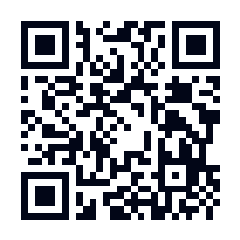
Scan this code with your phone’s camera to open the student web app. On iPhone, open it in Safari.
Or open the web app here.WHICH ONE IS FOR ME?
Same account, same routine. The difference is only where you open it.
| Detail | Android | Web & iPhone | Print-shop app |
|---|---|---|---|
| Best for | Students on Android phones | Students on iPhone or a laptop | Campus print-shop owners |
| Runs on | Android | Any modern browser, Safari on iPhone | Windows, plus a phone panel |
| How to get it | Google Play | Open the web app or scan the QR code | Onboarding through the team |
| Your account | Sign up with your email, then confirm it | Sign up with your email, then confirm it | Shop accounts are set up with the team |
| Go | Open Google Play | Open the web app | For print shops |
YOUR FIRST FIVE MINUTES
Four short steps from a new account to Today at University.
Your email is confirmed before an account is created. Check spam if the message is slow.
Choose your department and section so your routine, notices and resources can find you.
The app shows you around the first time you open it.
See today’s classes and labs as a timeline, and keep going from there.
Use the Google Play link on the download page. You can also open the student web app on a phone or laptop.
Use the web app in Safari on your iPhone. There is no native iPhone app in this release.
Yes. Open the student web app in your browser. The Windows print-shop app is a separate tool intended for campus shops.
Install the Android app or open the student web app. Sign up and confirm your email before your account is created, then use your department and section to find your class tools.
Check your spam folder for the confirmation message from My University. Your email must be confirmed before an app account is created.
Yes. Use the account deletion page linked from the privacy page.